Get in touch
Write to info@qiaotavoloflow.it. We set up your restaurant with an owner account and a staff account (both with temporary passwords) and pick the colour theme that suits your place.
There’s no online sign-up: we do the setup for you.
From setup to service, step by step with real screenshots. The staff and owner screens are in Chinese, so button names are given with a translation in brackets.
Screenshots show “竹林拉面 Bambù”, a made-up sample restaurant: dishes, prices and QR codes are for demonstration only.
Write to info@qiaotavoloflow.it. We set up your restaurant with an owner account and a staff account (both with temporary passwords) and pick the colour theme that suits your place.
There’s no online sign-up: we do the setup for you.
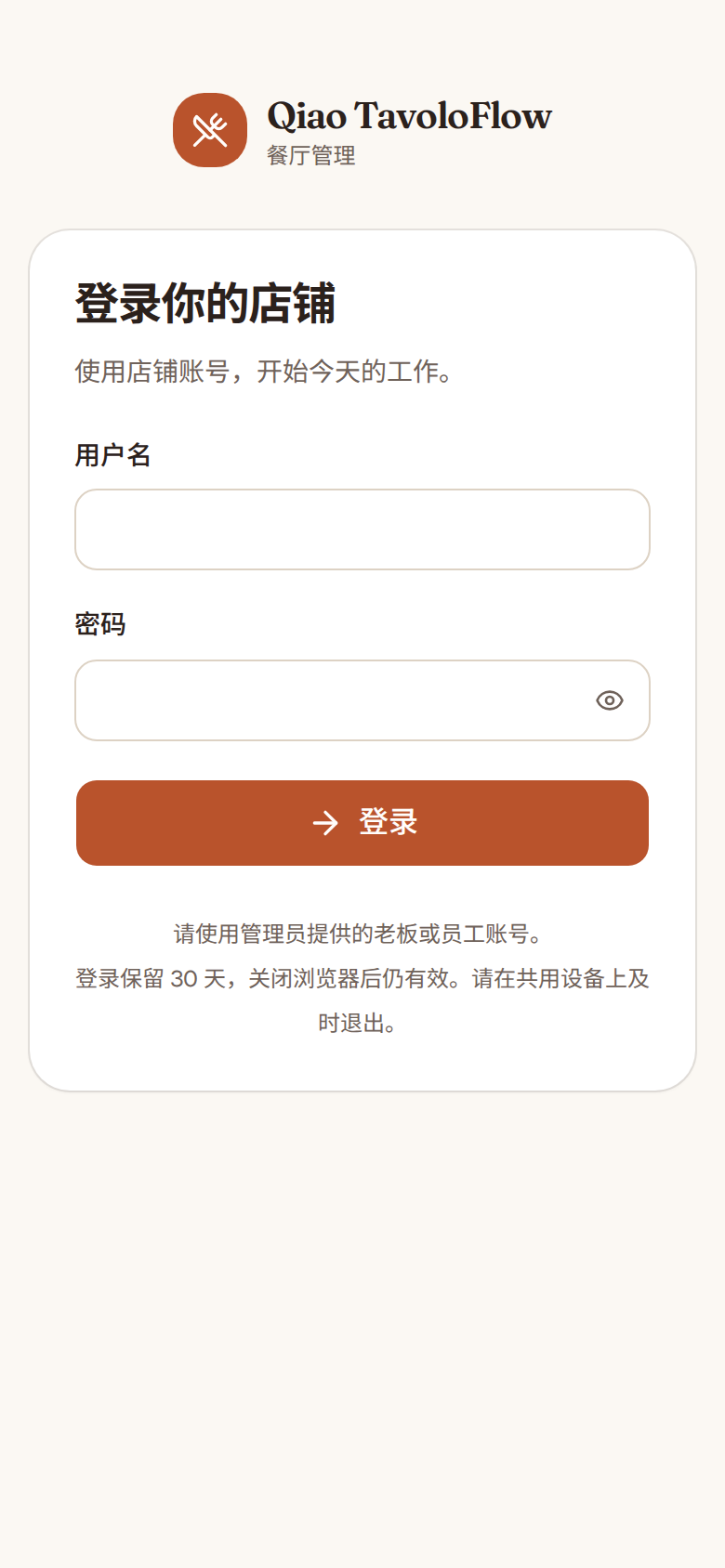
On a phone or computer, open app.qiaotavoloflow.it/staff and log in with the owner account. The first time, you’ll be asked to replace the temporary password with your own.
You stay logged in for 30 days. On shared devices, remember to log out.
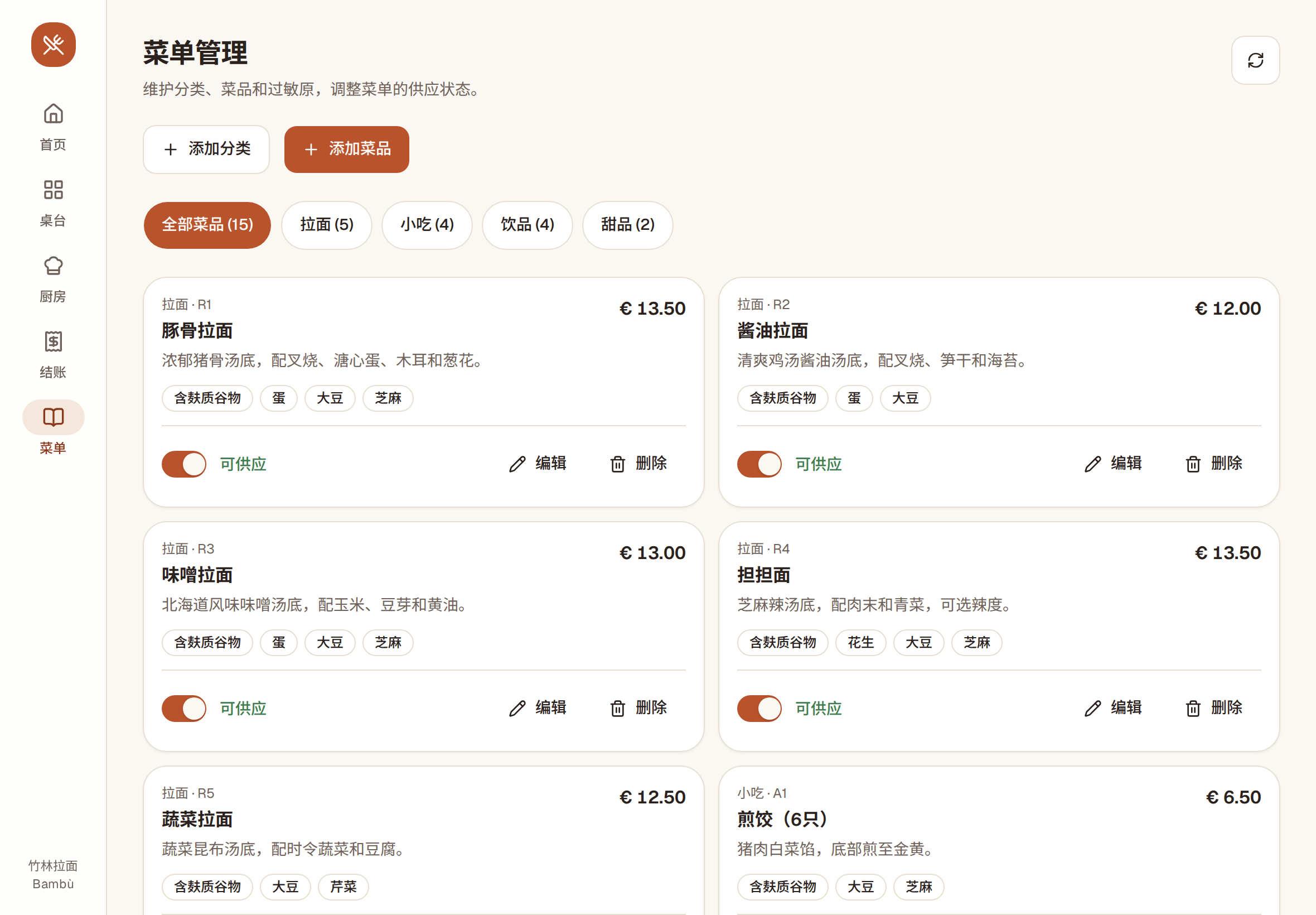
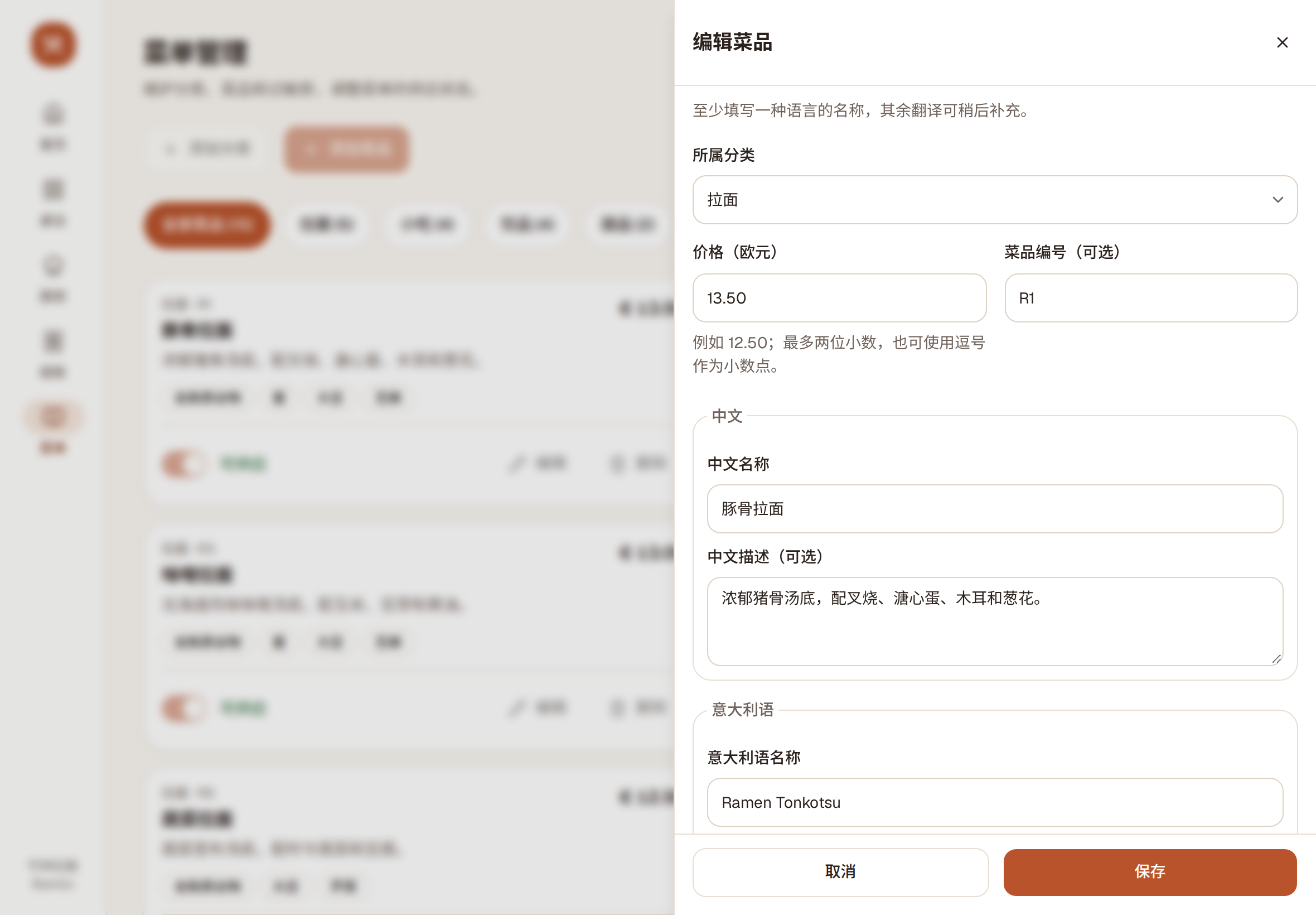
Create categories (for example ramen, starters, drinks, desserts), then add dishes: price, dish number (optional), and name and description in Chinese, Italian and English. One language is enough to start; add the others later.
Before saving a dish, you confirm that its allergens have been checked.
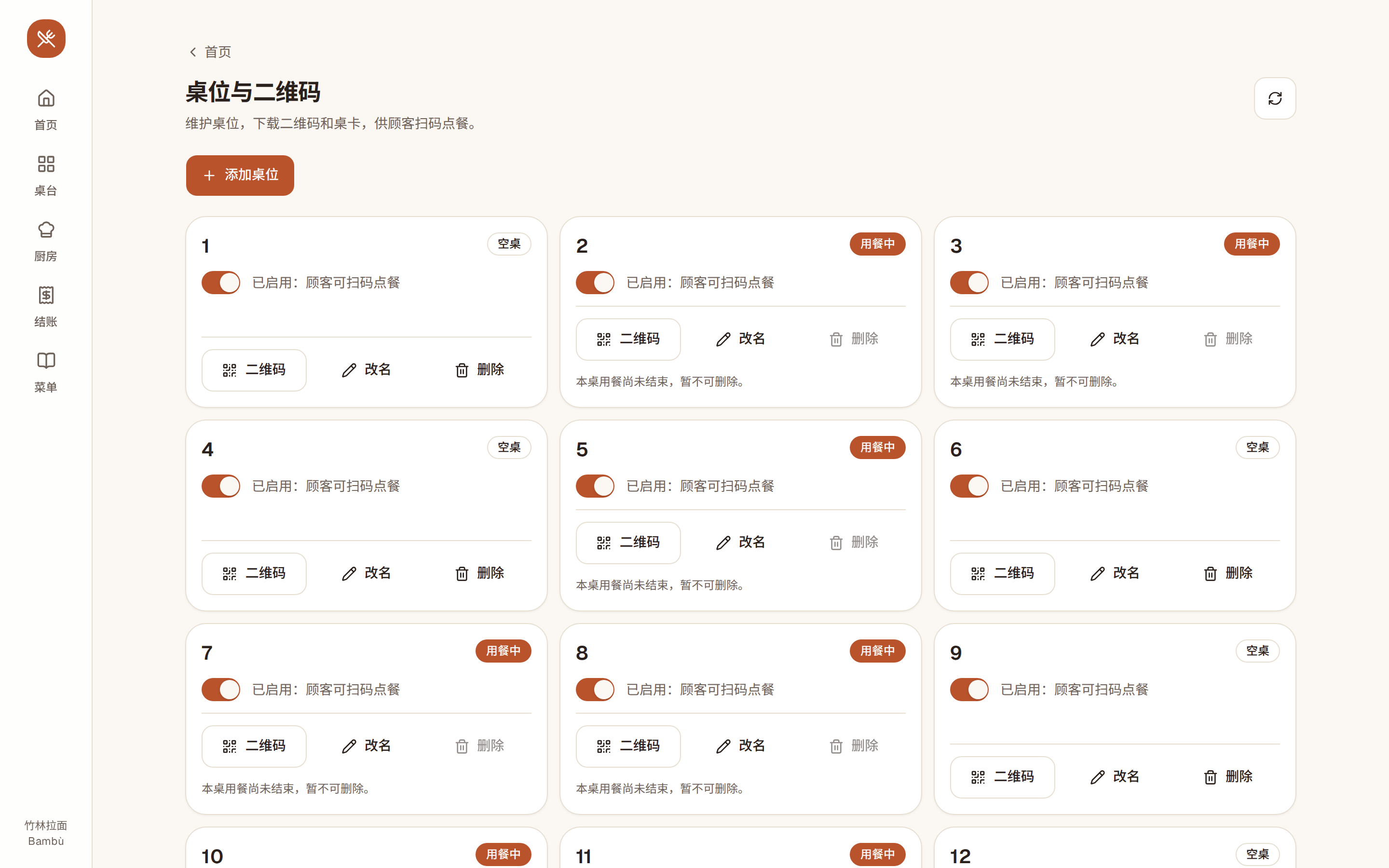
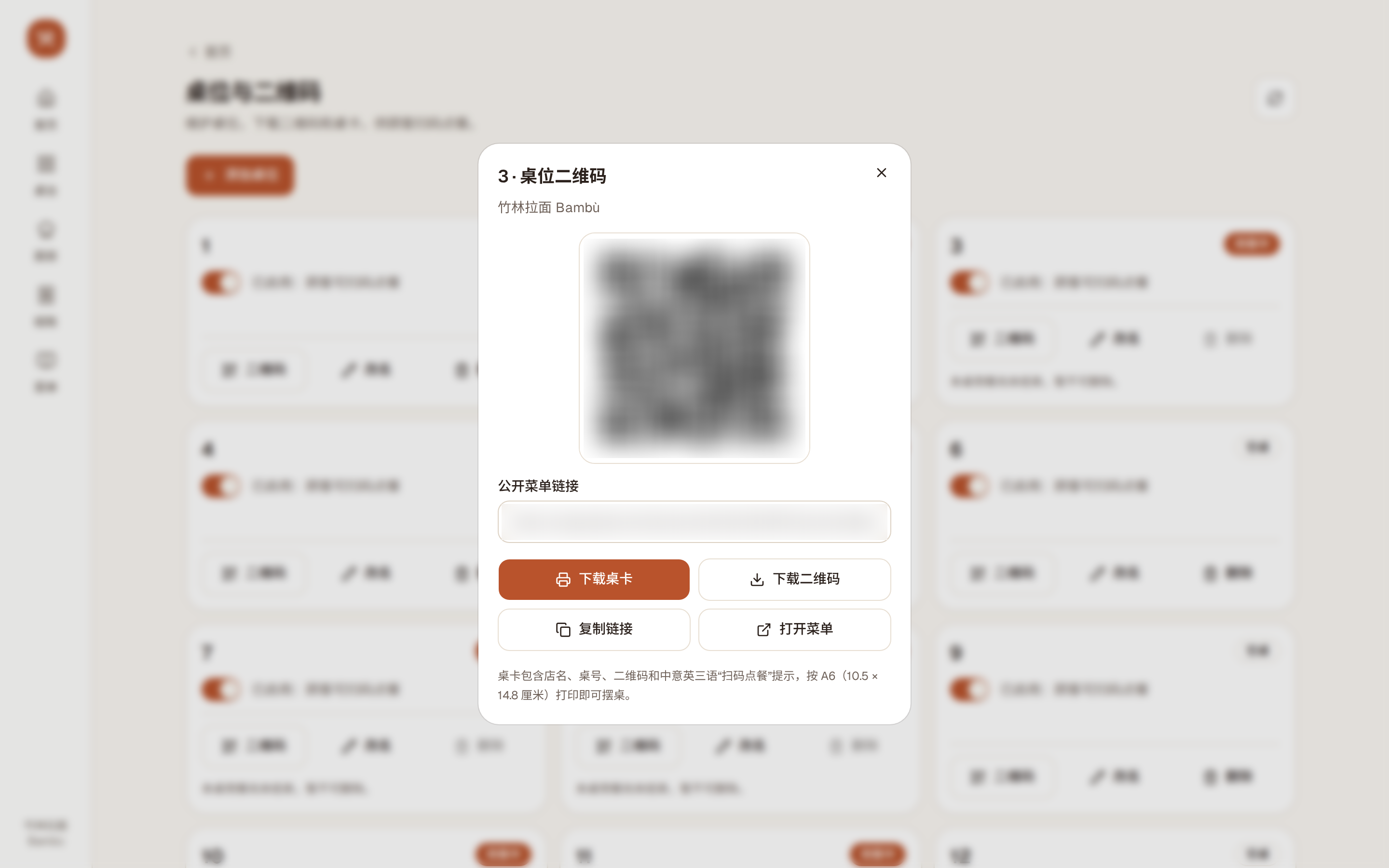
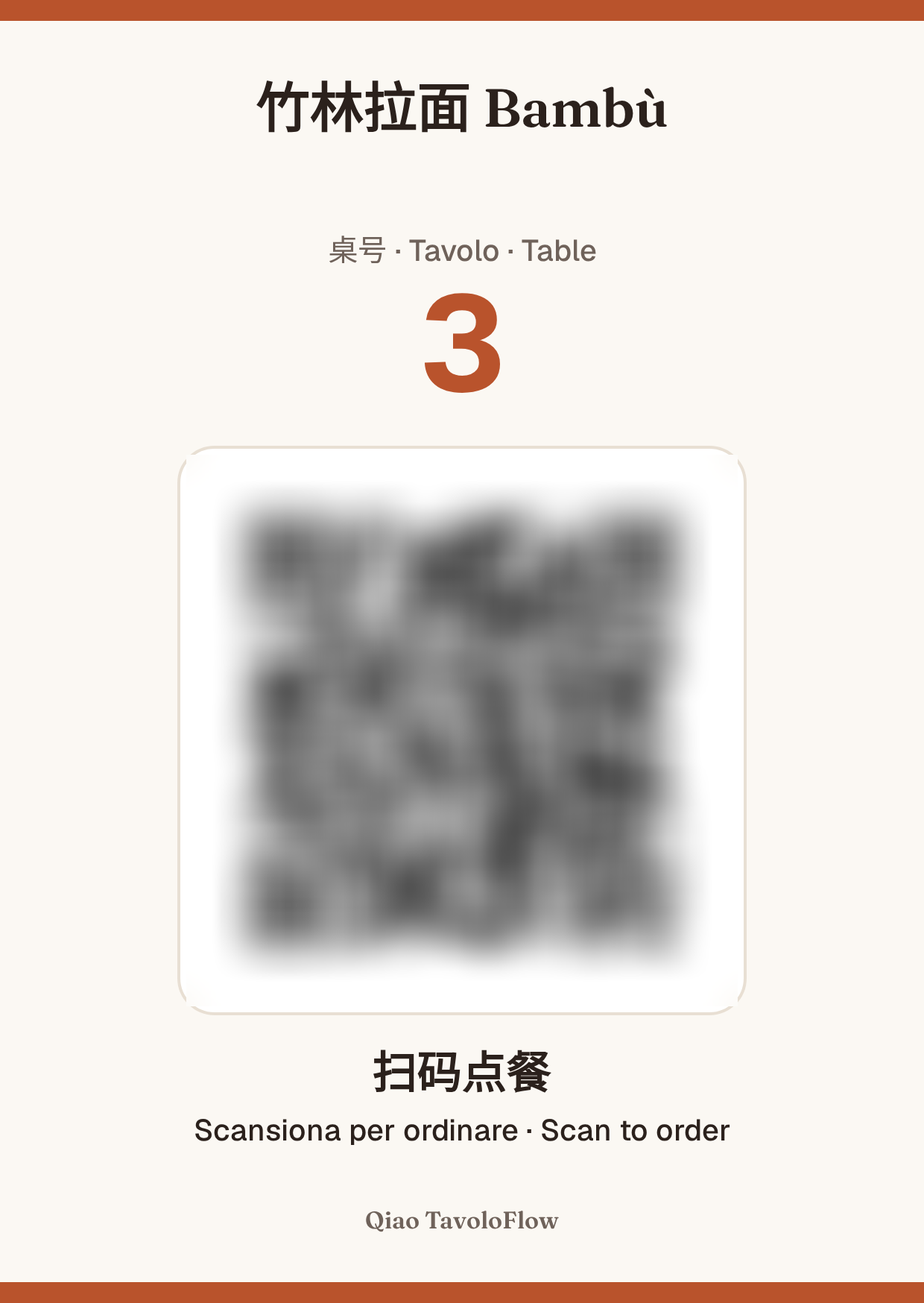
In «桌位与二维码» (Tables and QR codes), add your tables by number. For each table you can download the QR code or an A6 table card with your restaurant name, table number, QR code and “Scan to order” in three languages. Print it and put it on the table.
The QR code never changes, so there’s no need to reprint it.
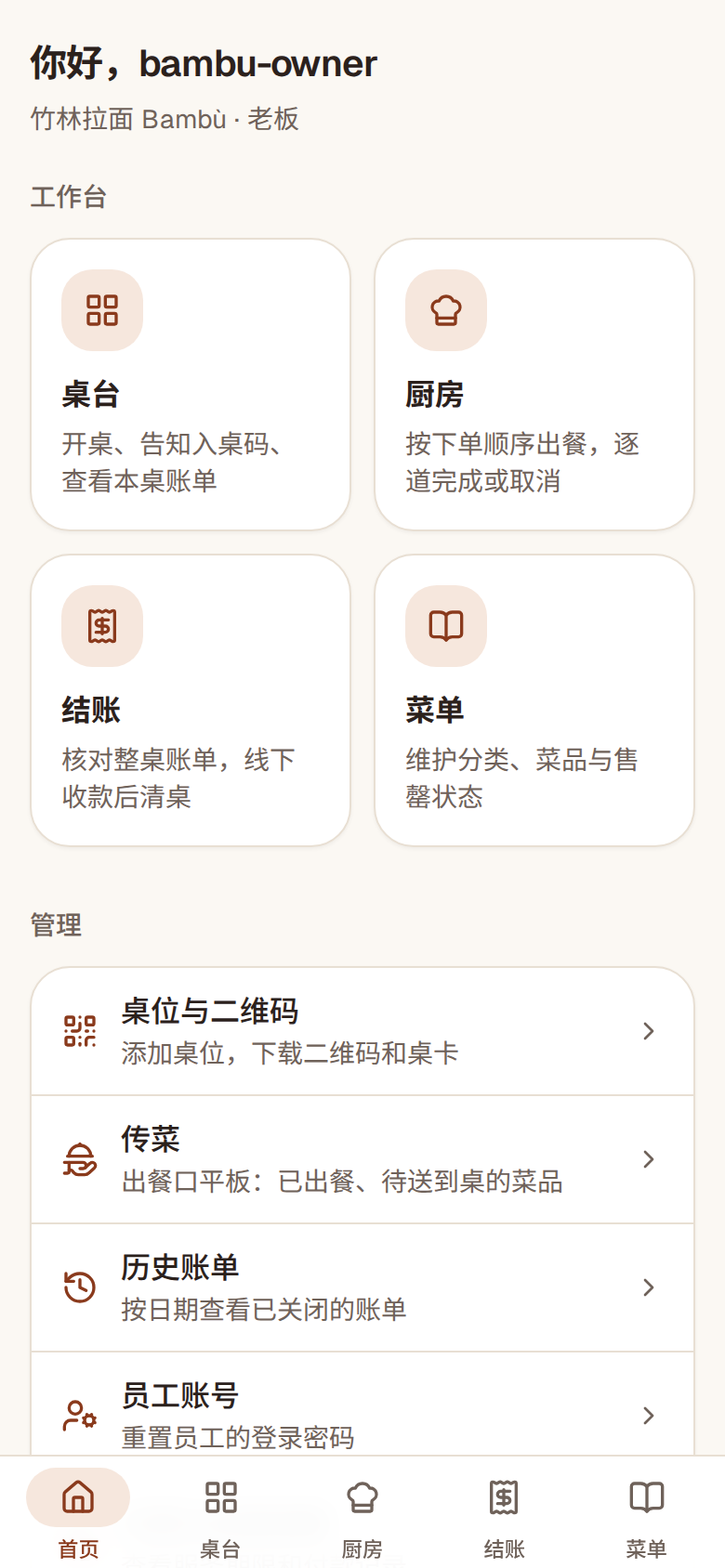
No special hardware: use the phones, tablets or computers you already have. Staff screens can be added to the home screen and opened like an app.
| Role | Suggested device | Screens |
|---|---|---|
| Waiters | Phone | «桌台» (Floor) to open tables and share the code; «菜单» (Menu) to mark dishes sold out |
| Kitchen | Tablet, landscape | «厨房» (Kitchen), with sound alerts and screen kept on |
| Pass | Tablet | «传菜» (Pass), from the «管理» (Admin) list on the home screen |
| Owner / till | Phone or tablet | «结账» (Bills), bill history, menu management, tables and QR codes |
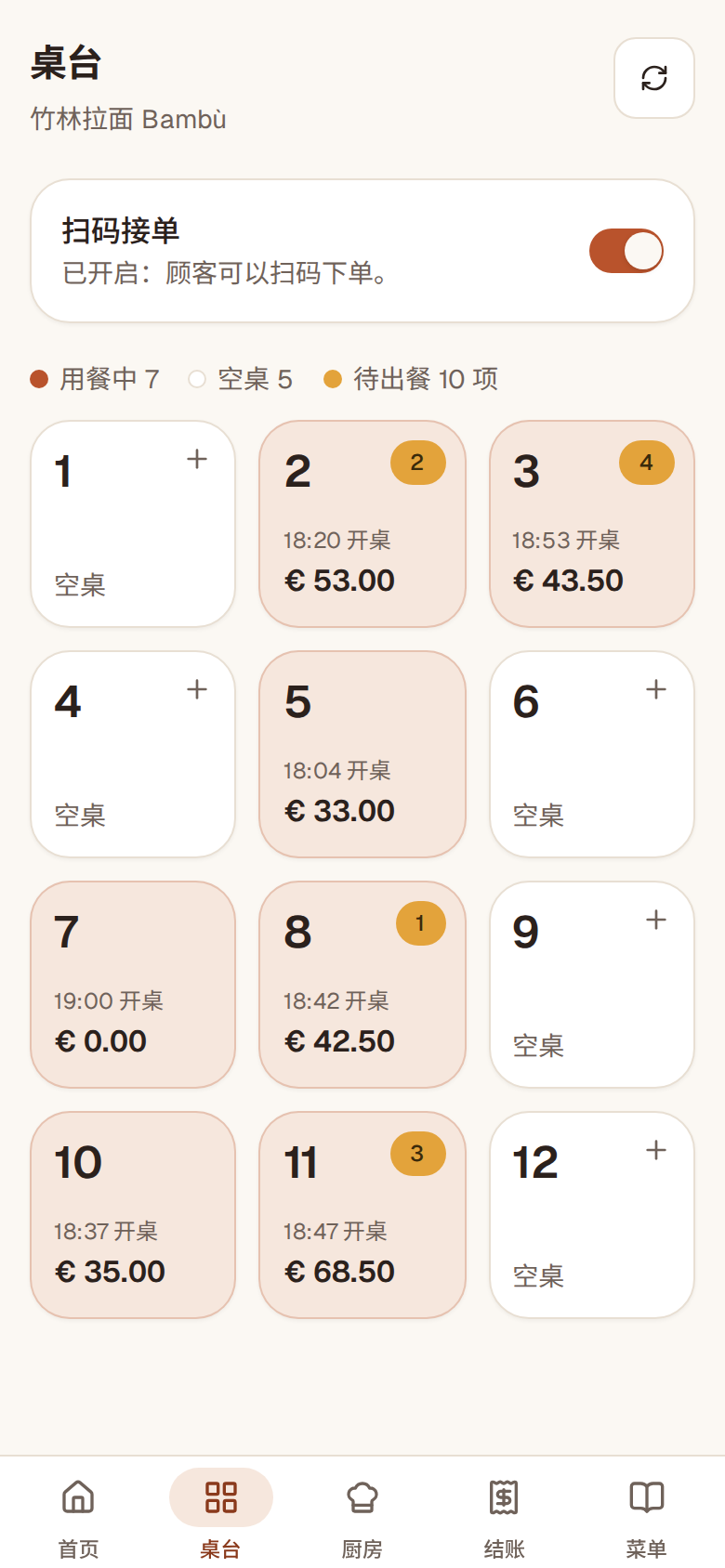
Once we’ve switched your service on, turn on «扫码接单» (QR ordering) on the «桌台» (Floor) screen. From then on, guests can order.
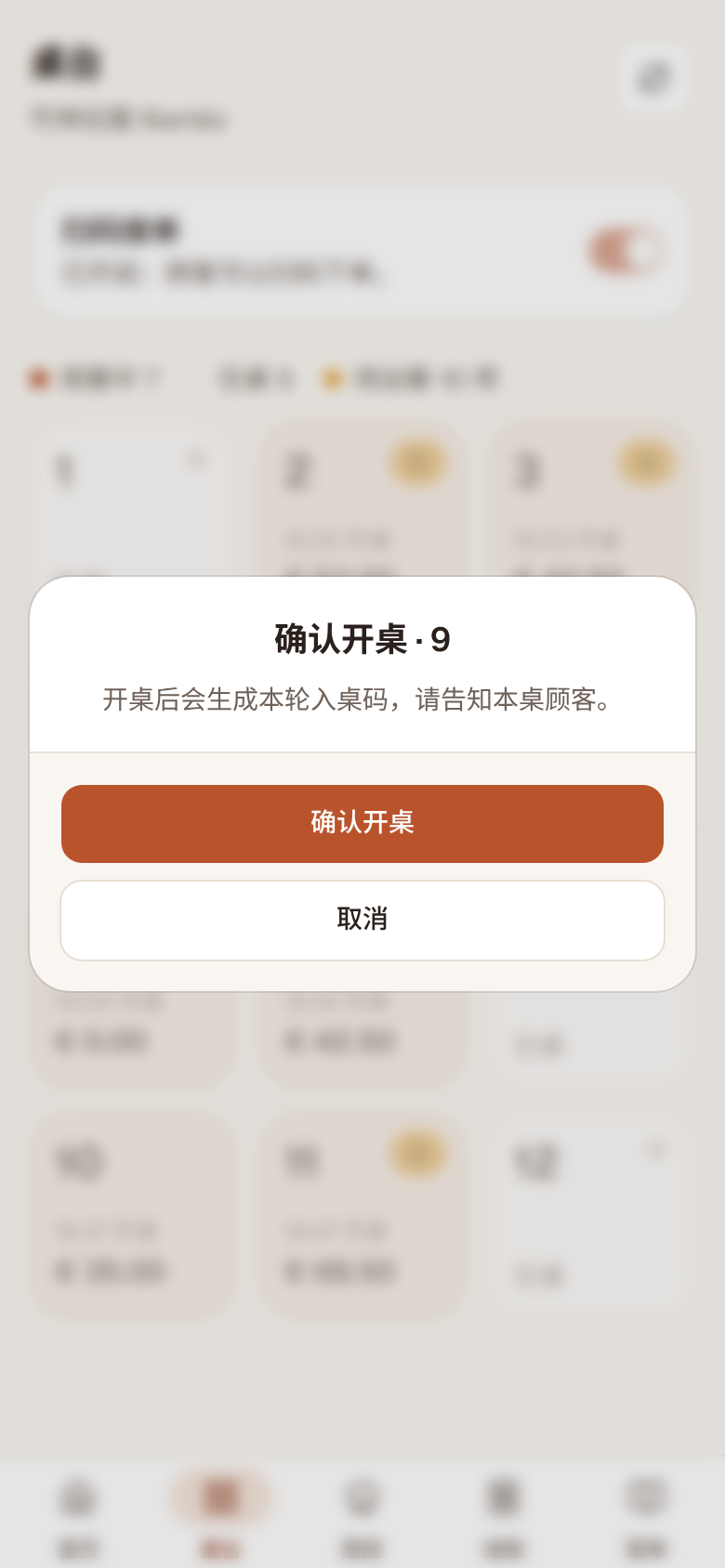
On «桌台» (Floor), tap the free table and confirm «开桌» (Open table). The system creates a 4-character table join code for the guests; you can look it up again in the table details.
Scanning the QR code doesn’t open a table: staff always open it first.
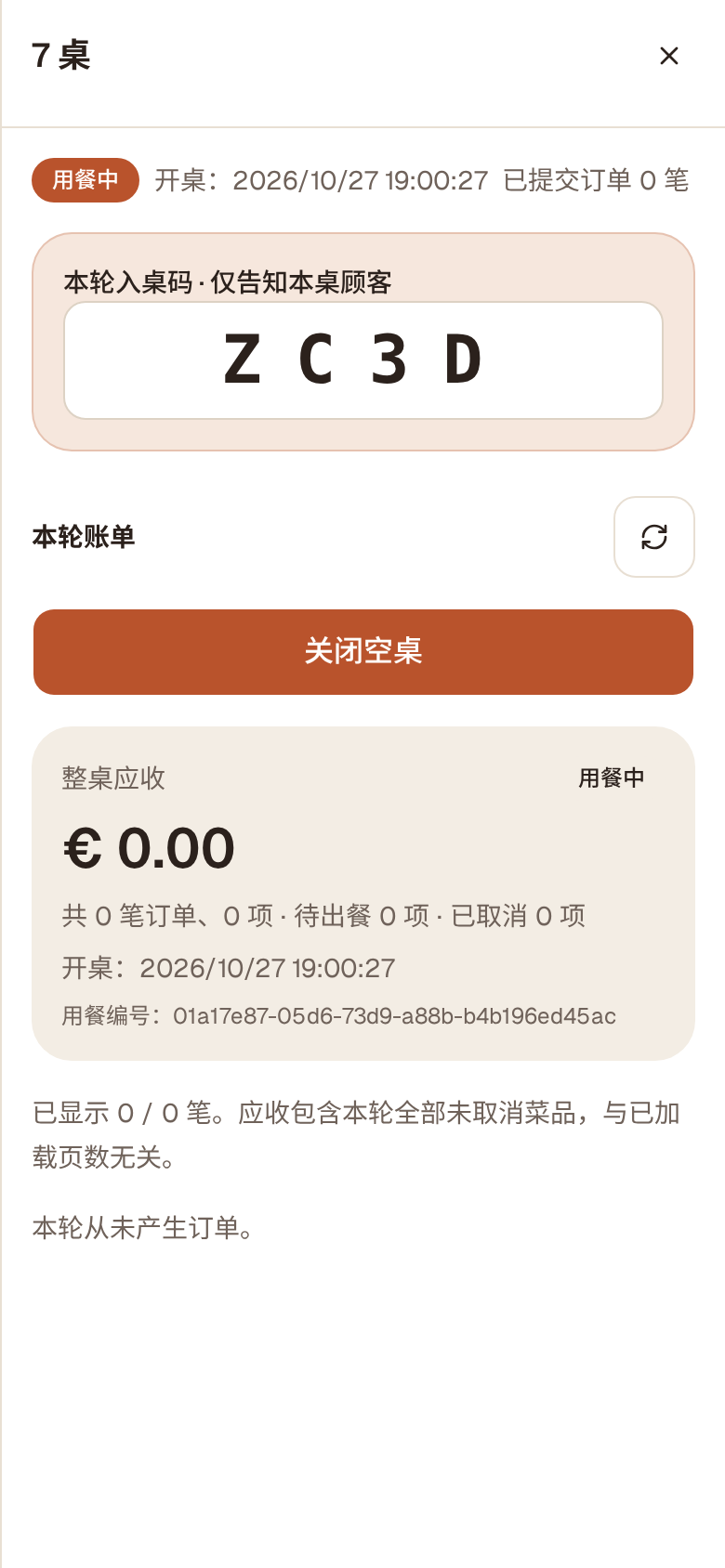
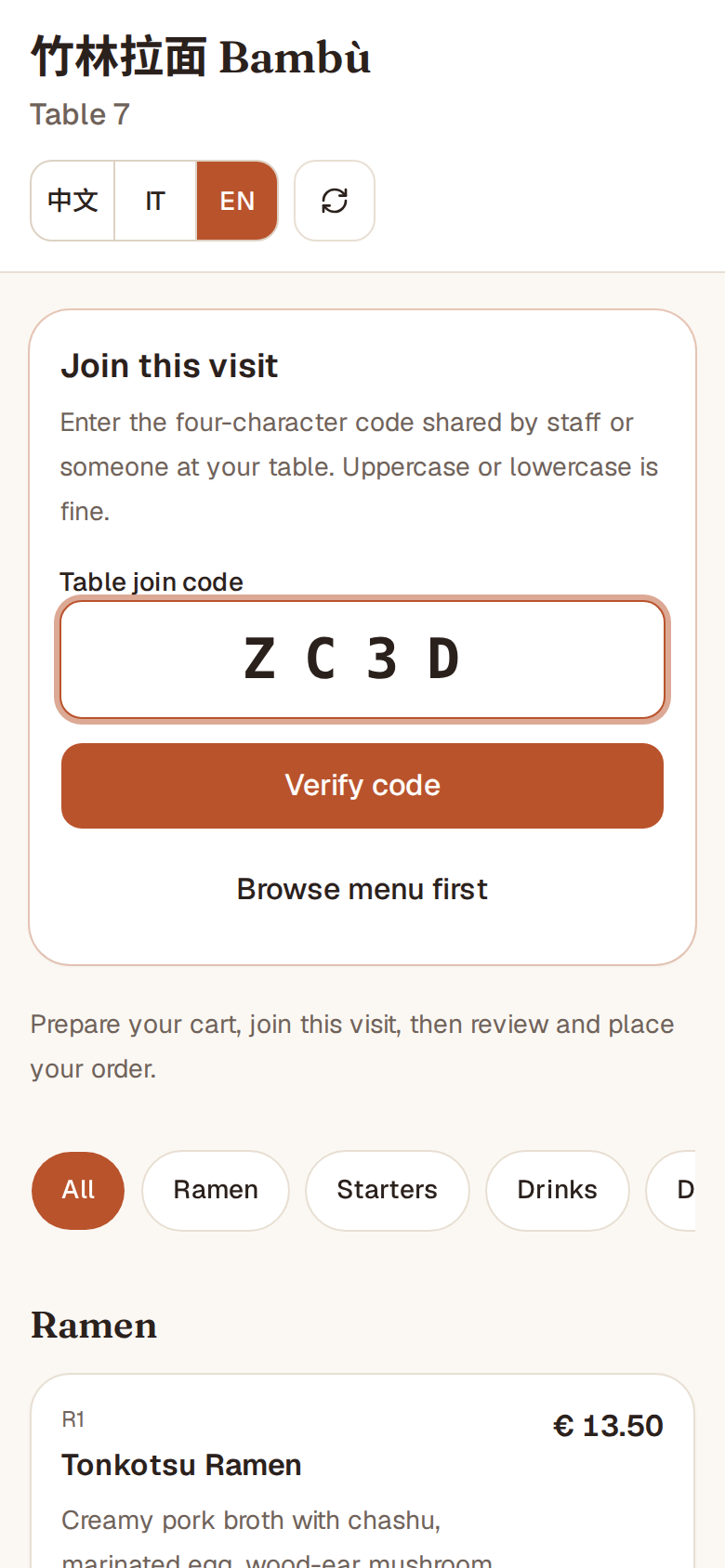
Guests point their phone camera at the QR code on the table and your menu opens, in 中文, Italiano or English. After entering the table join code they can order; they can browse the menu first.
If the join code has been switched off for your restaurant (set by the platform), guests simply tap “Join this visit” once the table is open.
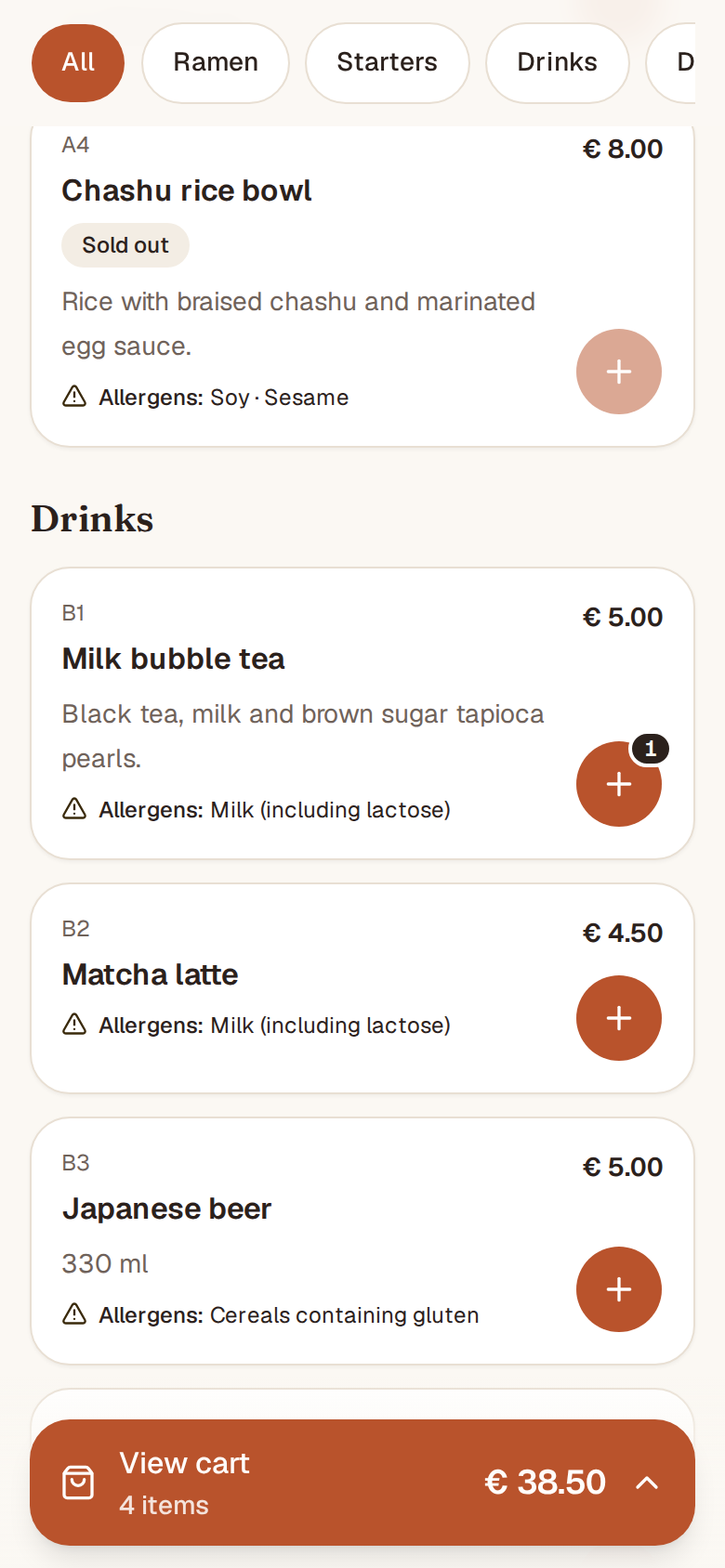
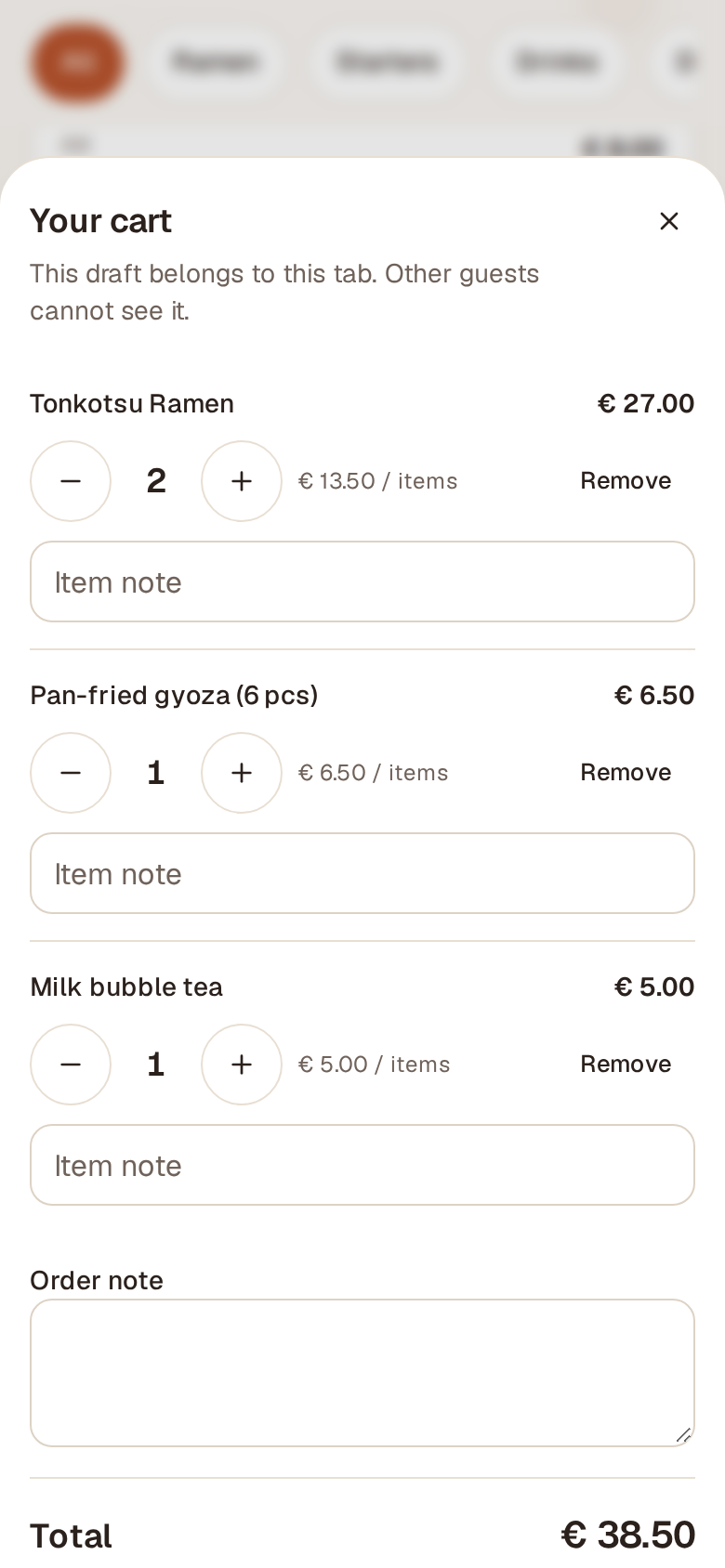
They tap “+” to add dishes to the cart, change quantities and add notes (for example “less spicy”). They open the cart, review it and place the order.
Everyone at the table can order from their own phone with their own cart, and it all goes into the same bill.
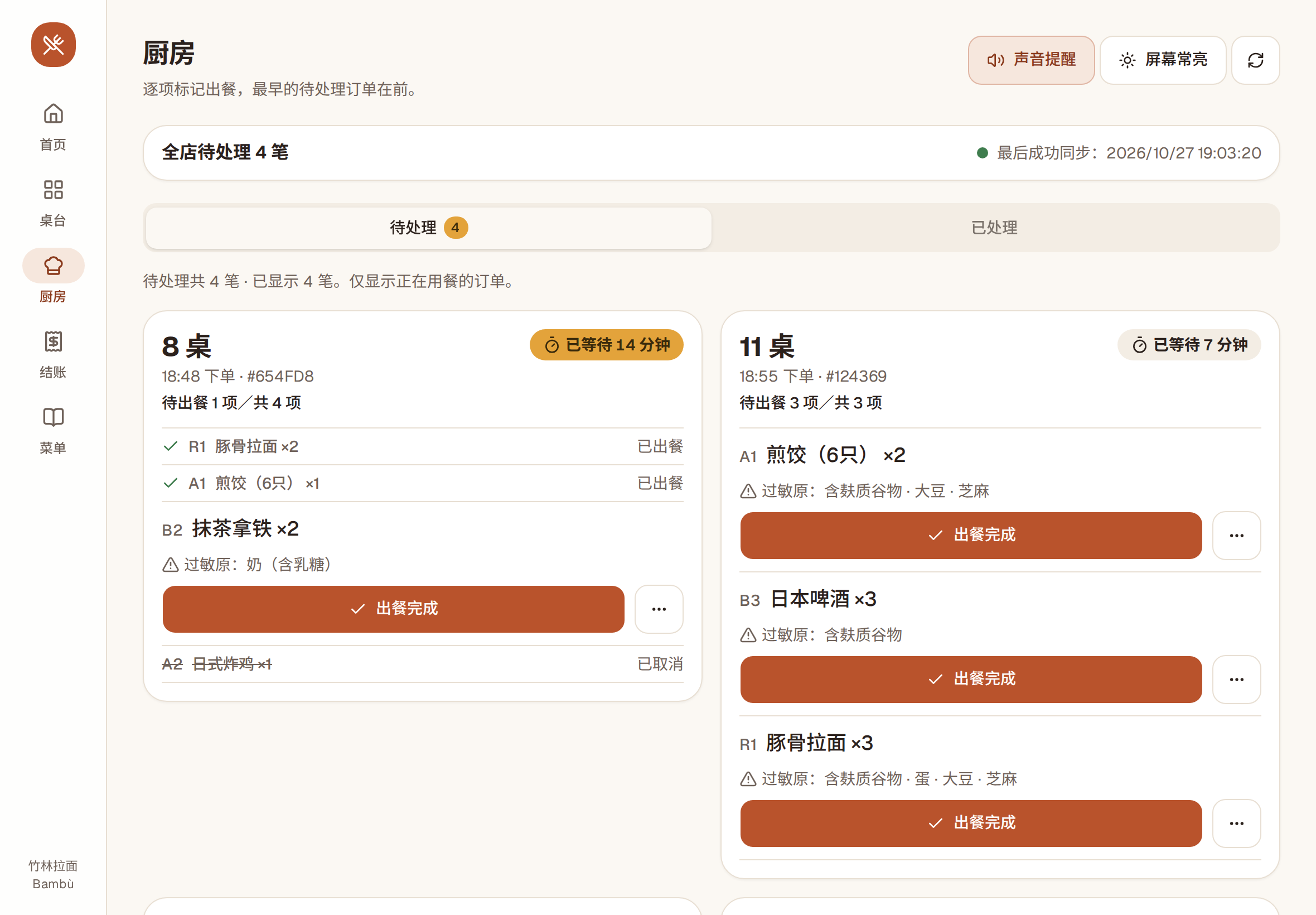
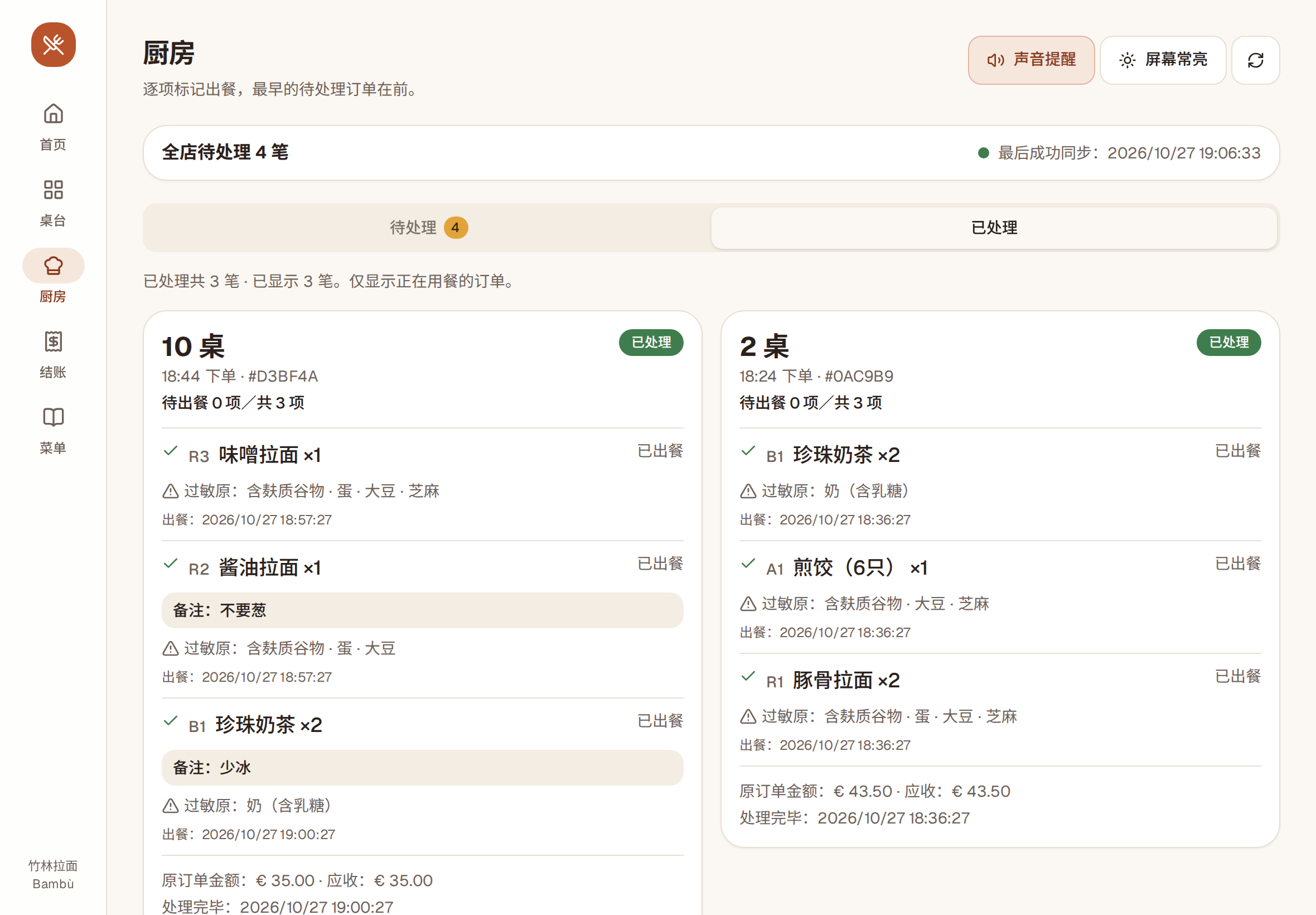
The order shows up on the kitchen screen right away, oldest first, with a sound alert. Each finished dish gets a tap on «出餐完成» (Ready).
A dish that can’t be made is cancelled from the «…» button, with an extra confirmation; cancelled dishes aren’t added to the bill. A dish already marked ready can’t be cancelled.
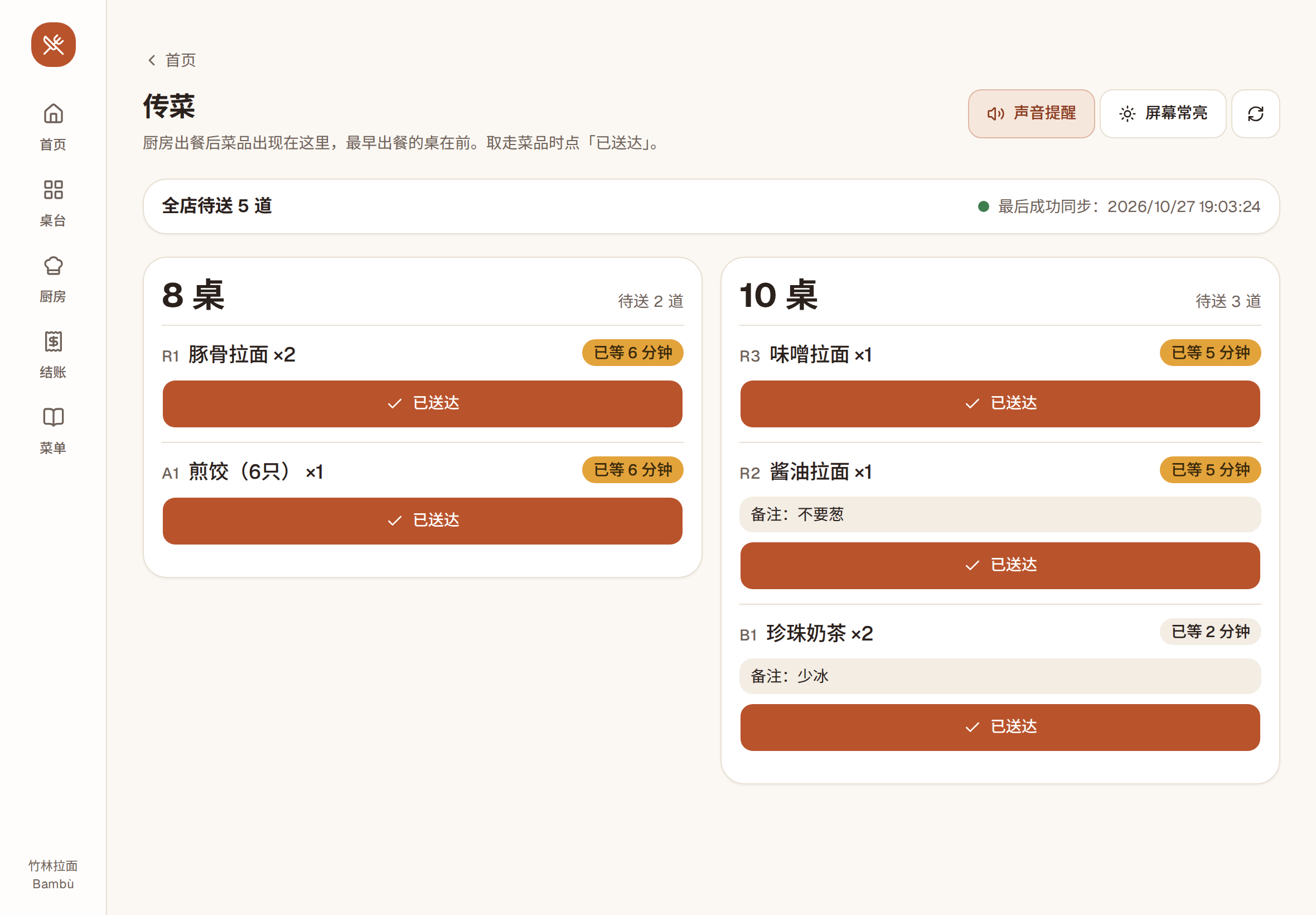
Ready dishes appear on the pass screen, grouped by table, notes included. Whoever serves taps «已送达» (Served) once the dish reaches the table.
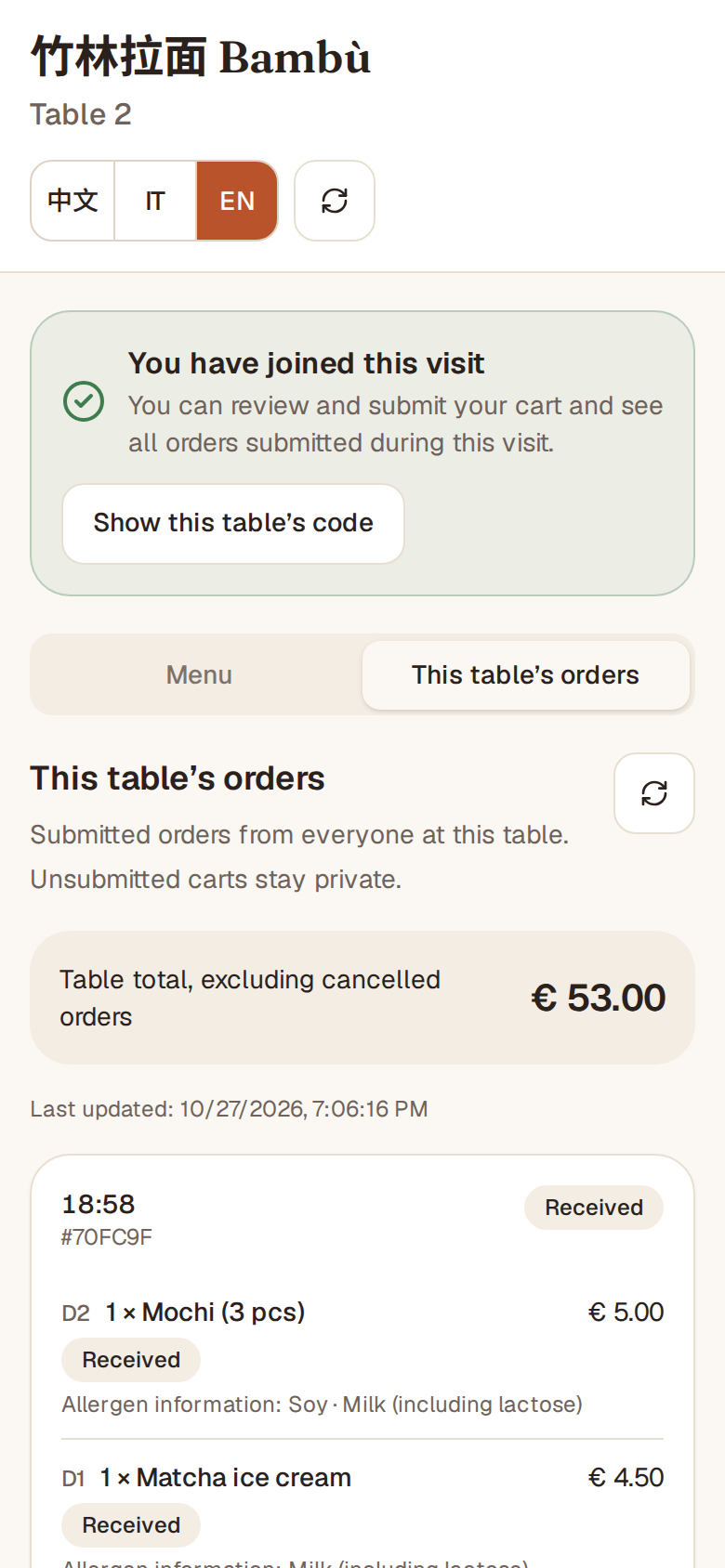
Under “This table’s orders”, guests see every dish ordered by the table, its status (Received / Ready for pickup / Cancelled) and the table total. Want more? They keep ordering.
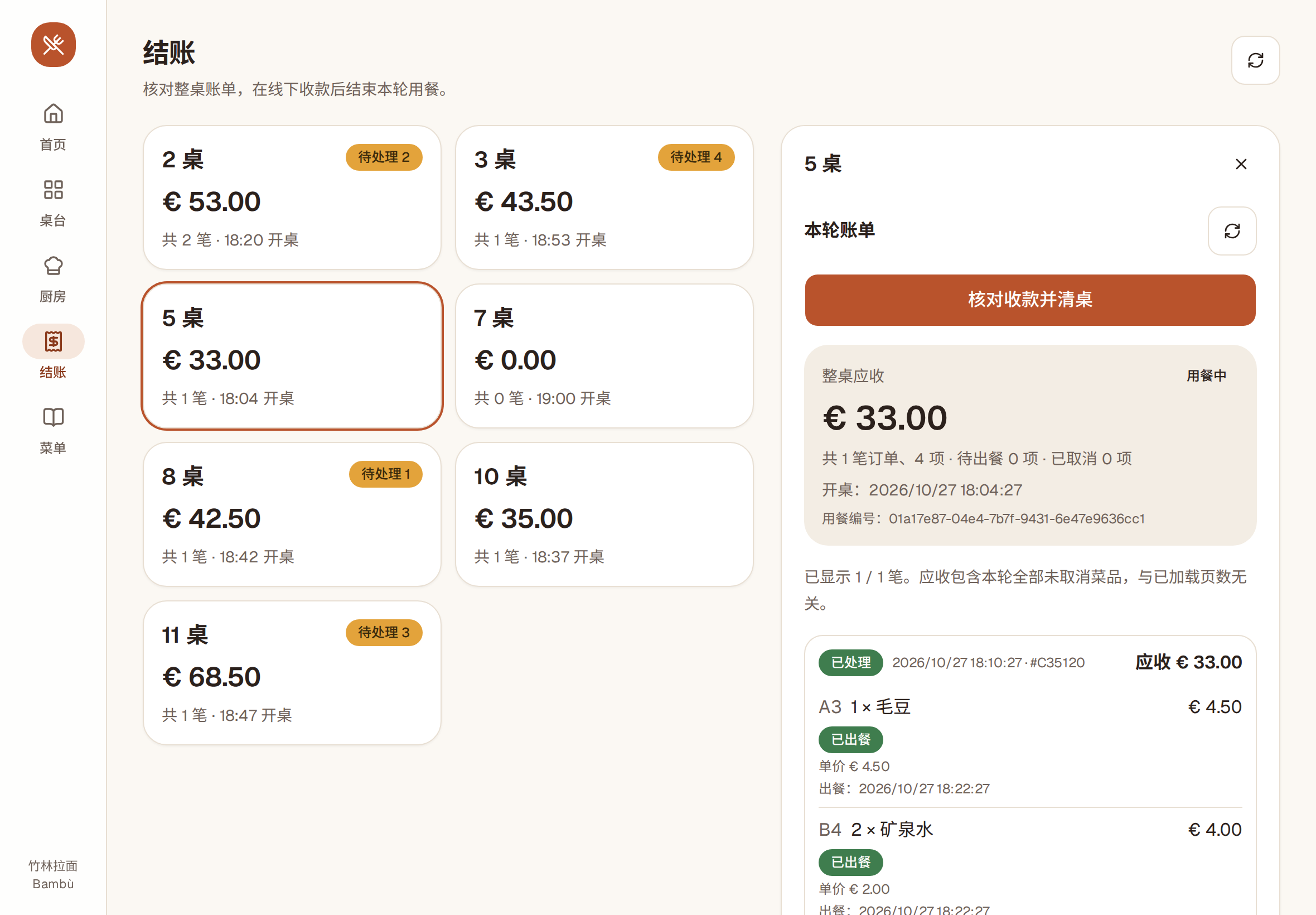
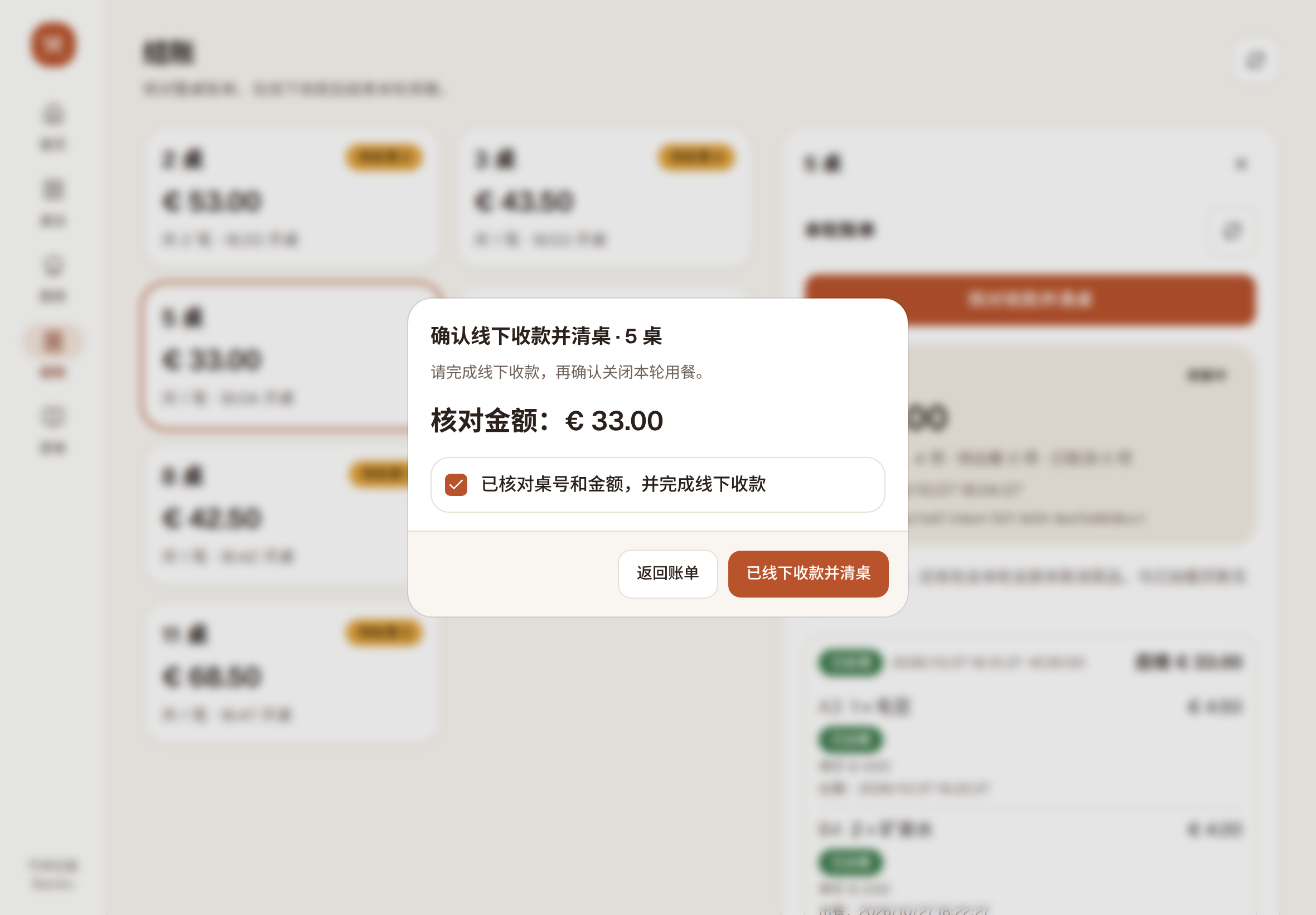
On «结账» (Bills), open the table’s bill, check dishes and total, and take payment the way you always do (cash, card, your own till). Then confirm «已线下收款并清桌» (Paid at the counter, table cleared).
The table is free again and that round’s join code stops working: the next guests get a newly opened table with a new code.
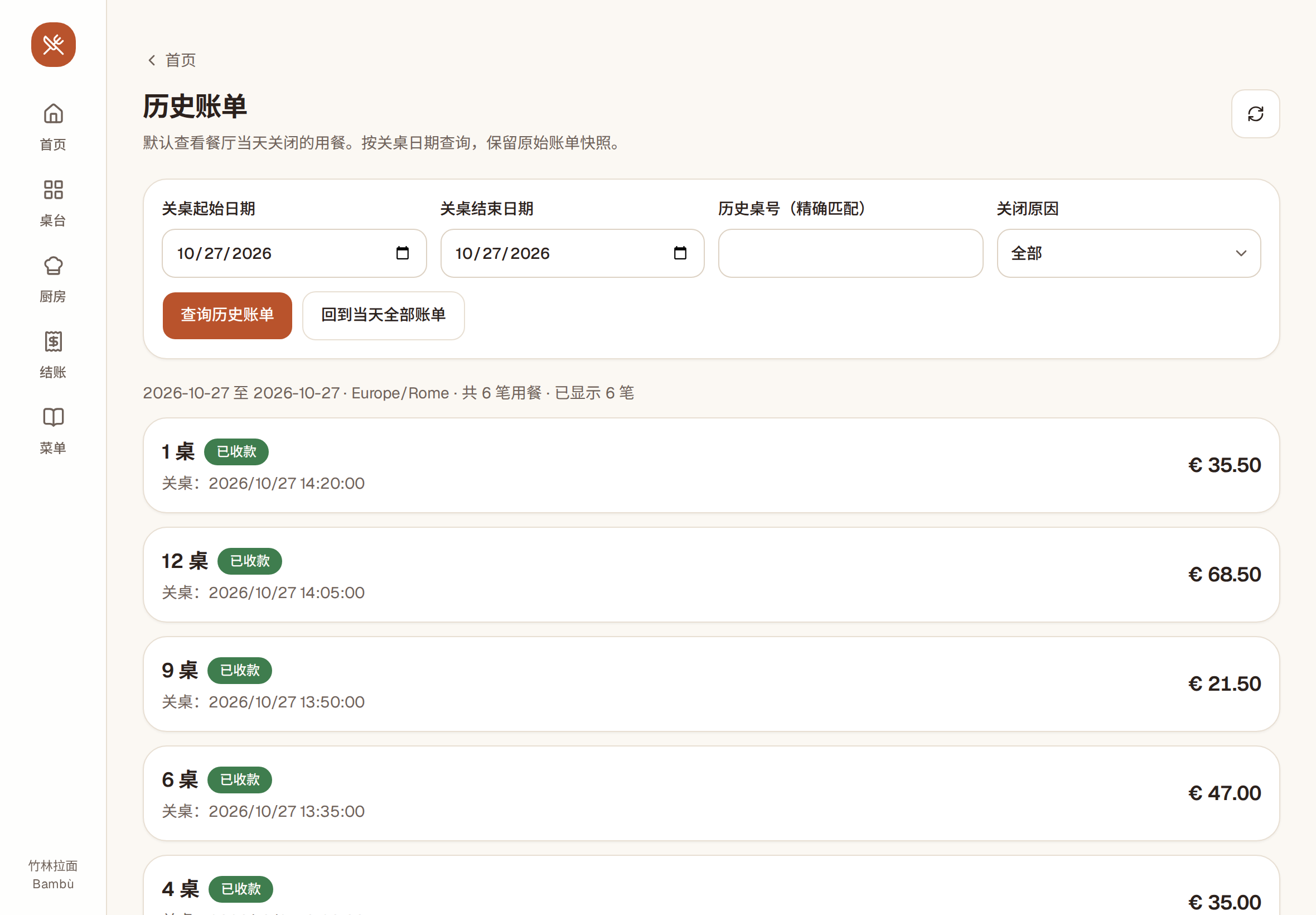
In «历史账单» (Bill history), the owner looks up closed bills by date and table, with amount and closing reason; dish names and prices stay as they were at the time.
In «菜单» (Menu), switch off the dish’s «可供应» (Available) toggle: guests see “Sold out” right away.
On «桌台» (Floor), switch off «扫码接单» (QR ordering). Guests can still see the menu but can’t send new orders; orders already placed aren’t affected.
If staff forget the password, the owner resets it in «员工账号» (Staff account); it must be changed at the first login with the temporary password. If the owner forgets theirs, write to us and we’ll reset it.
The kitchen, pass and bills screens warn that data isn’t up to date and block actions until they resync, so nobody works from old data. If a guest’s connection drops while ordering, the system checks that order when it’s back and never sends it twice.
Each restaurant has one owner account and one staff account, each usable on several phones, tablets and computers at the same time.
Want to see if it fits your restaurant? Write to us: we’ll show you how it works and set up your restaurant.
Tell us your restaurant’s name and city, and we’ll get back to you.
info@qiaotavoloflow.it
In WeChat, press and hold the QR code to open itScan it with WeChat on your phone
Already a customer?Owner & staff login